
Shop Help
Artwork Help Guide
Learn how to upload, adjust, and prepare your artwork for printing.
Getting Started
Overview of the Proof Viewer
The Proof Viewer allows you to inspect, position, resize, and prepare your artwork before approving it for production. It displays your artwork alongside the product's print template so you can see how your design fits within the available printing area.
Working with Your Artwork
Use Art Adjust to move, resize, and rotate your artwork. For more detailed editing, Advanced Design allows you to work with individual artwork layers, including adding, duplicating, and organizing elements.
Understanding the Print Template
The viewer displays guides to help you position your artwork correctly. These guides show important areas such as bleed and safe boundaries. The guides are for reference only and will not appear on your printed product.
Reviewing Your Proof
The Proof Checks panel identifies potential concerns, including artwork size, bleed coverage, color mode, fonts, and image quality. Review these notices before approving your artwork.
Multiple Pages or Sides
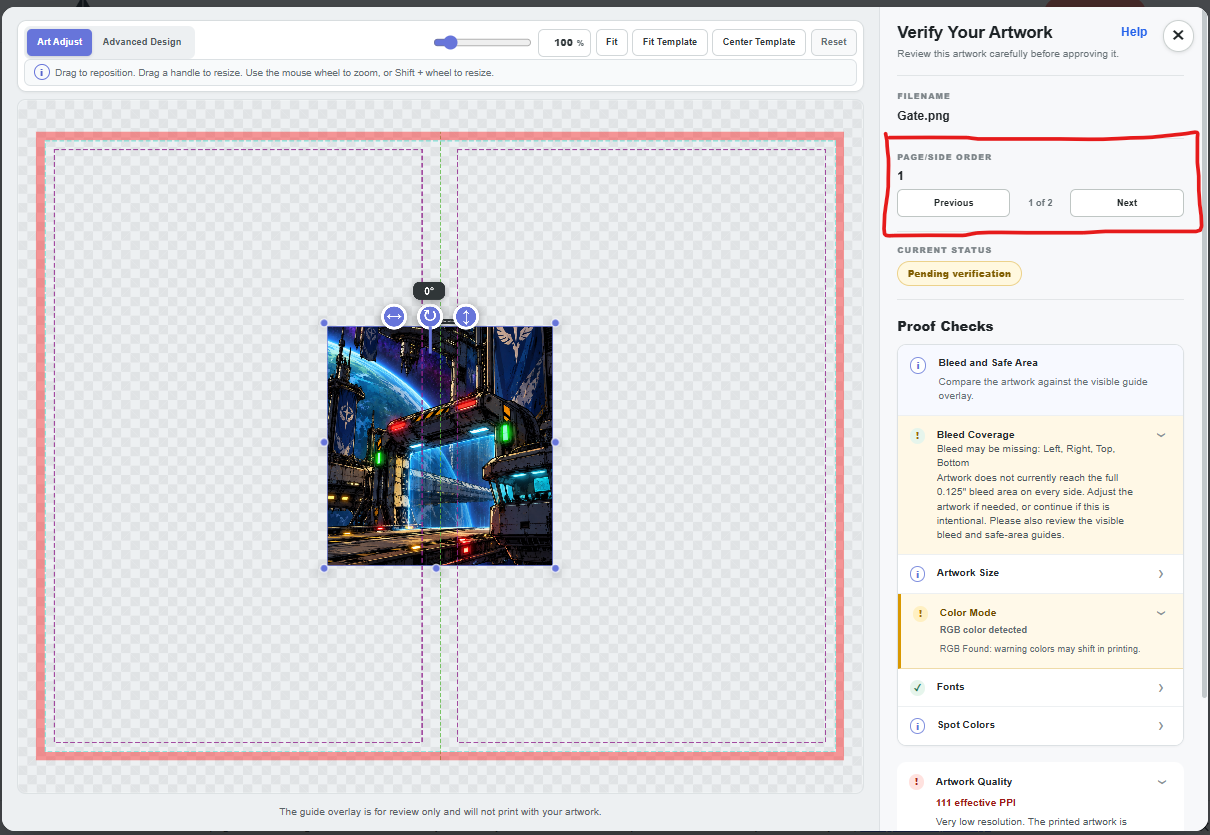
If your product contains multiple pages or printed sides, use the Previous and Next buttons to review each one individually.
Final Approval
Before verifying your artwork, check the spelling, layout, sizing, positioning, and page order. Once you're satisfied, complete the artwork verification process to continue with your order.
Uploading Artwork
Upload your artwork to begin preparing your design for printing. You can upload an image or PDF file and review it in the Proof Viewer before approving your order.
How to Upload Artwork
- Locate the artwork upload area on the product page.
- Select the file you want to upload from your device.
- Wait for the file to finish loading.
- Open the Proof Viewer to inspect your artwork.
- Use the available editing tools if you need to adjust its size or position.

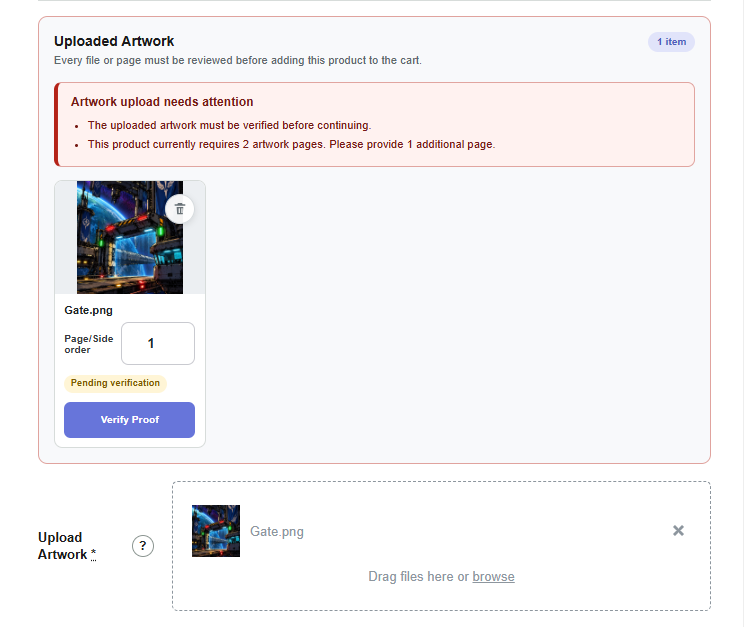
Uploading a PDF
If your PDF contains multiple pages, review the pages carefully to make sure the correct artwork is assigned to each printed page or side.
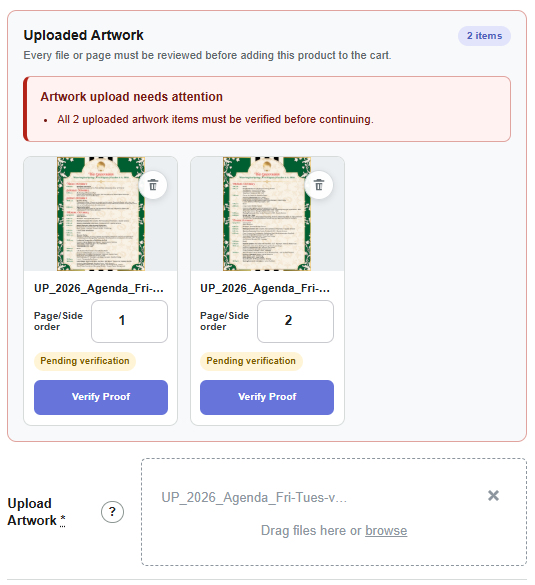
Before You Continue
Check that you uploaded the correct file and that the artwork appears as expected. You can use the Proof Viewer to make positioning and sizing adjustments before approval.
Supported File Types
Our artwork uploader accepts the following file formats:
- JPG / JPEG: Common image format used for photographs and finished designs.
- PNG: Image format that supports transparent backgrounds.
- GIF: Image format supported for artwork uploads. GIFs have a more limited color pallete and are not recommended.
- PDF: Recommended for documents and artwork containing multiple pages.
Which Format Should I Use?
If you already have a print-ready PDF, that is generally a good choice. PNG works well for artwork requiring transparency, while JPG is suitable for photographs and designs with solid backgrounds.
Image Quality Matters
Uploading a supported file does not automatically mean the artwork is suitable for printing. Low-resolution images may appear blurry or pixelated when enlarged.
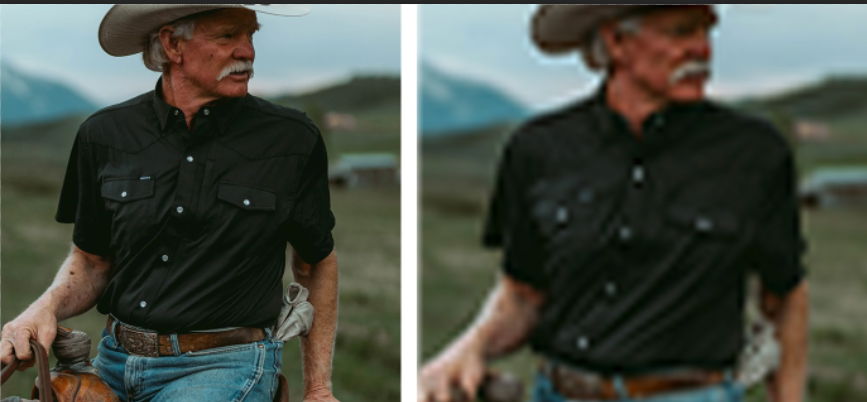
Tip: Whenever possible, upload your original high-quality artwork instead of a screenshot or a small image downloaded from the internet.
Navigating Pages & Sides
Some products contain more than one printable page or side. The Proof Viewer allows you to review each one separately.
Switching Between Pages
- Open the Proof Viewer.
- Locate the Page/Side Order section in the right-hand panel.
- Click Next to move to the following page or side.
- Click Previous to return to an earlier page or side.
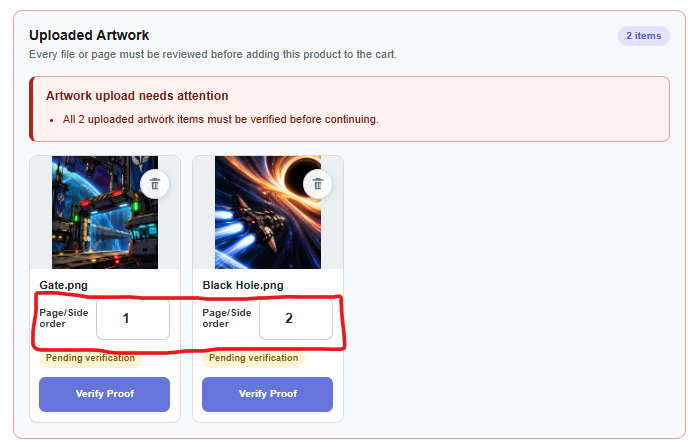
Check Every Page
Each page or side may contain different artwork. Review every page for correct positioning, sizing, spelling, and orientation before completing artwork verification.
Understanding Page Order
The page indicator shows which page you are currently viewing and how many pages are available. For example, 1 of 2 means you are viewing the first of two pages.
Important: Do not assume that reviewing the first page means the remaining pages are correct. Check each page individually.
Understanding the Print Template
The print template shows where your artwork should be positioned and identifies important boundaries for printing and trimming.
Understanding the Guide Lines
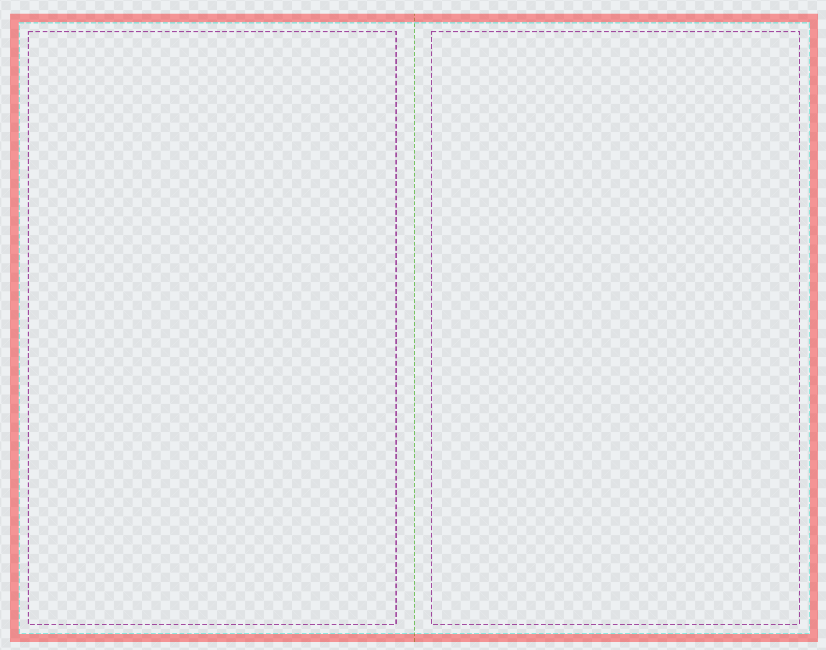
The colored lines and boundaries help you determine whether your artwork extends far enough for printing and whether important content is positioned safely.
Bleed Area
Bleed is the extra artwork that extends beyond the final trimmed edge. If your design has a background color or image that should reach the edge of the finished product, it should extend through the bleed area. Failure to do this may result in a thin white line where the paper is cut.
On the template overlay the red area is the bleed area.
Safe Area
Keep important text, logos, and other critical design elements inside the safe area. This helps prevent them from being too close to the trimmed edge.
This is shown with the purple dashed line on the template.
Artwork Outside the Template
Artwork that extends beyond the visible template may be cropped or fall outside the intended printing area. Use the positioning and resizing tools to adjust your design as needed.
Folding Lines
Scoring or Folding happens along green dashed lines on the template.
Will the Guide Lines Print?
No. The guide lines are only visible in the Proof Viewer to help you prepare your artwork. They are not part of your printed design.
Tip: Review the Bleed and Safe Area results in the Proof Checks panel for additional guidance.
Proof Checking
Understanding Proof Results
The Proof Viewer automatically checks your artwork for common issues that could affect how your finished product looks.
These checks help you catch potential problems before approving your artwork for printing.
Where to Find Your Results
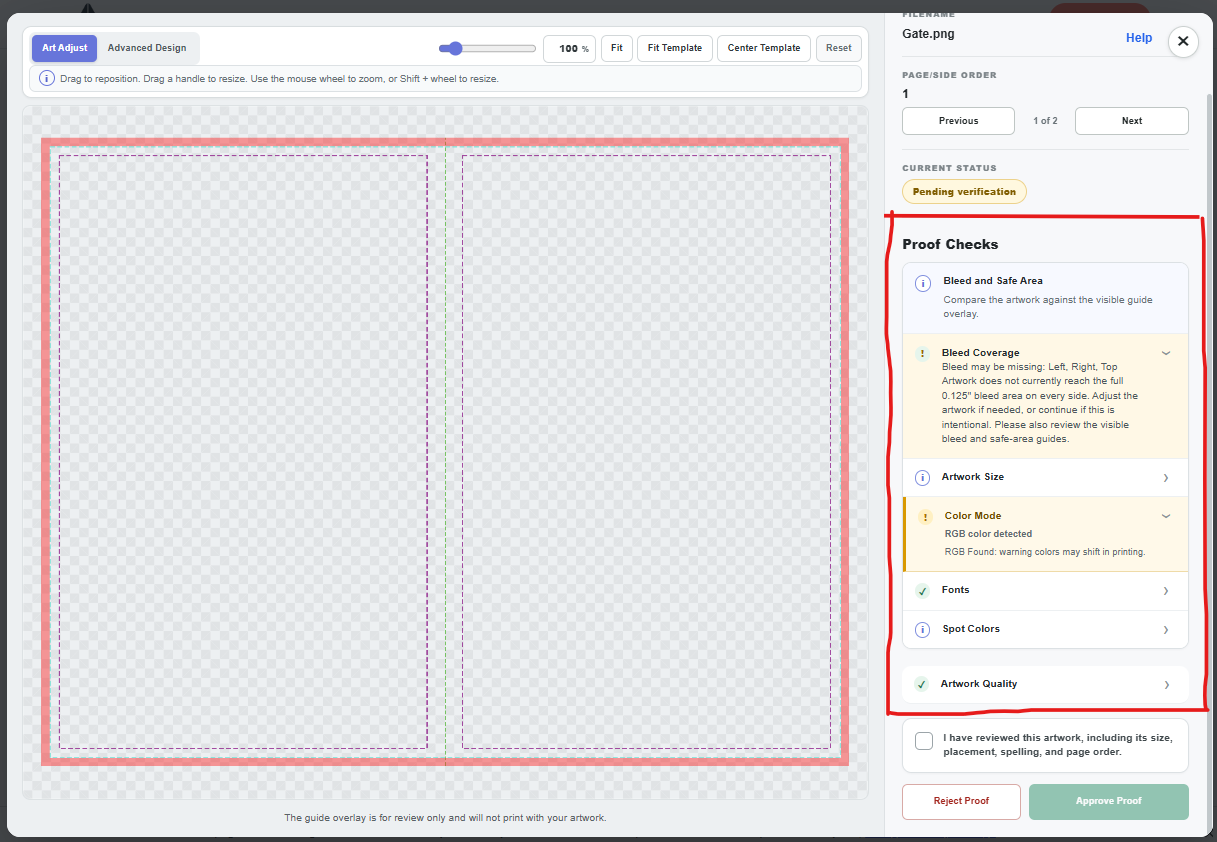
Open the Proof Viewer and look for the Proof Checks section in the right-hand panel.
Each check examines a different part of your artwork, such as its size, colors, image quality, or placement within the printing area.
Click a check to expand it and read additional information about the result.
What Should I Do?
- Review the results for your artwork.
- Open any warnings to learn what they mean.
- Make adjustments if needed.
- Check every page or side of your artwork.
- Verify your artwork when you are satisfied with its appearance mark the consent to approve.
Remember: Automated checks are helpful, but they cannot catch every possible printing issue. Always review your artwork visually before approving it.
Warnings, Errors & Passed Checks
Proof Checks use different symbols and colors to help you understand the results quickly.
Passed Checks
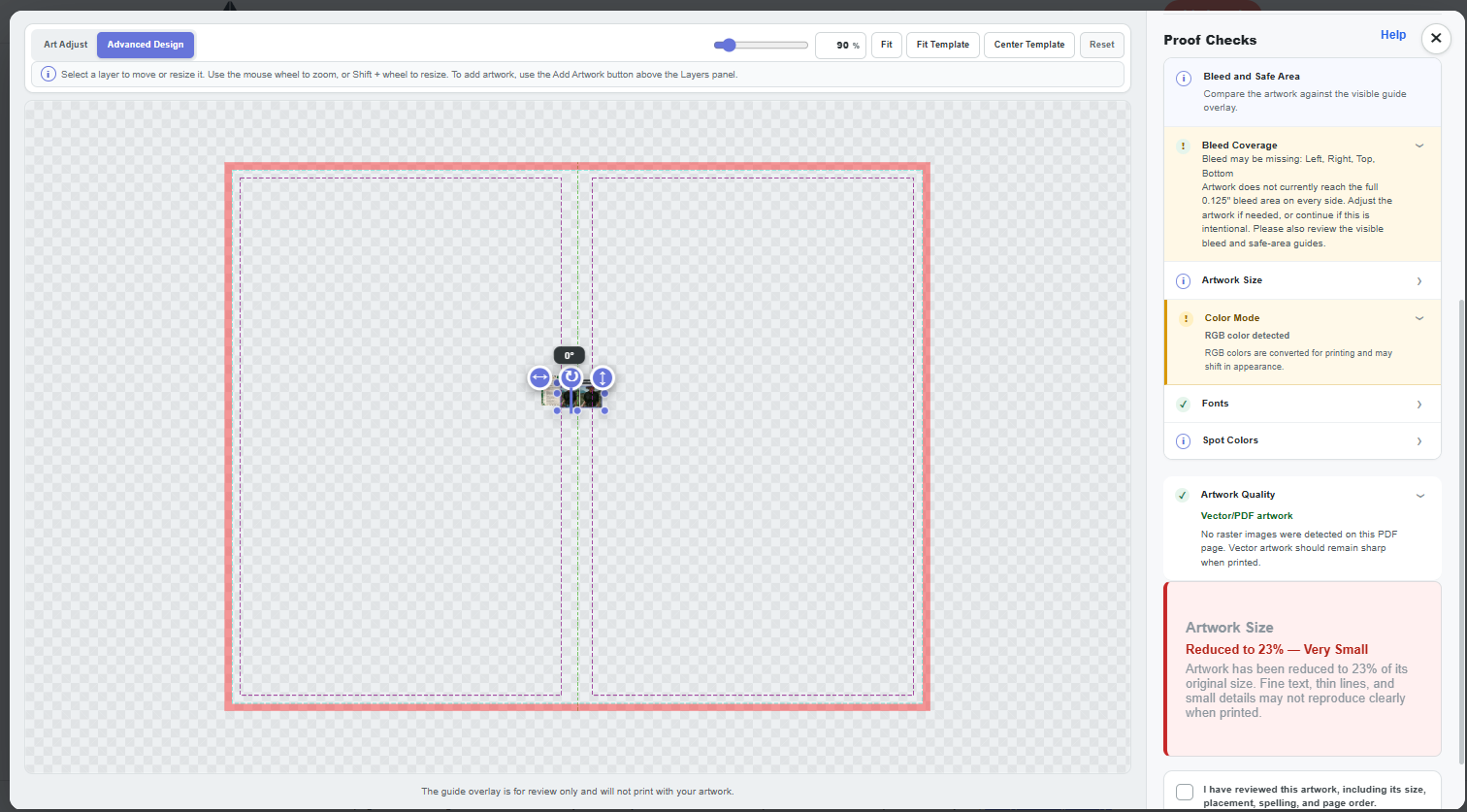
A green checkmark means the system did not detect a problem with that particular check.
You generally do not need to make changes for a passed check, but you should still review your artwork carefully.
Warnings
A yellow warning means the system noticed something that may affect your printed product.
A warning does not always mean your artwork is wrong. For example, your design may intentionally leave part of the background uncovered.
Open the warning, read the explanation, and decide whether your artwork needs adjusting.
Errors or Issues Requiring Attention
An error indicates a more serious concern that may prevent your artwork from being ready for printing.
Read the message carefully and correct the issue if possible before continuing.
Important: A green checkmark does not guarantee that your artwork is perfect. Always check spelling, placement, and the overall appearance yourself.
Informational Checks
Some Proof Checks provide helpful information rather than reporting a problem.
These messages are intended to explain something about your artwork or the printing process.
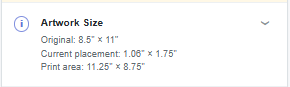
What Does the Information Symbol Mean?
A blue information symbol means there is something worth reviewing, but it does not necessarily mean your artwork needs to be changed.
For example, an informational message might explain how a particular file property or printing guideline affects your design.
Do I Need to Fix Anything?
Not necessarily. Read the information and make sure you understand how it applies to your artwork.
If the message describes something you intended, you may not need to make any changes.
Bleed & Safe Area
Bleed and safe areas are two of the most important things to understand when preparing artwork for printing.
They help make sure your finished product has clean edges and that important parts of your design are not accidentally cut off.
What Is Bleed?
Imagine printing a photograph and then cutting the paper down to its final size.
Even with professional cutting equipment, the cut may shift very slightly. If the photograph stops exactly where the paper is supposed to be cut, that small movement could leave an unwanted white strip along the edge.
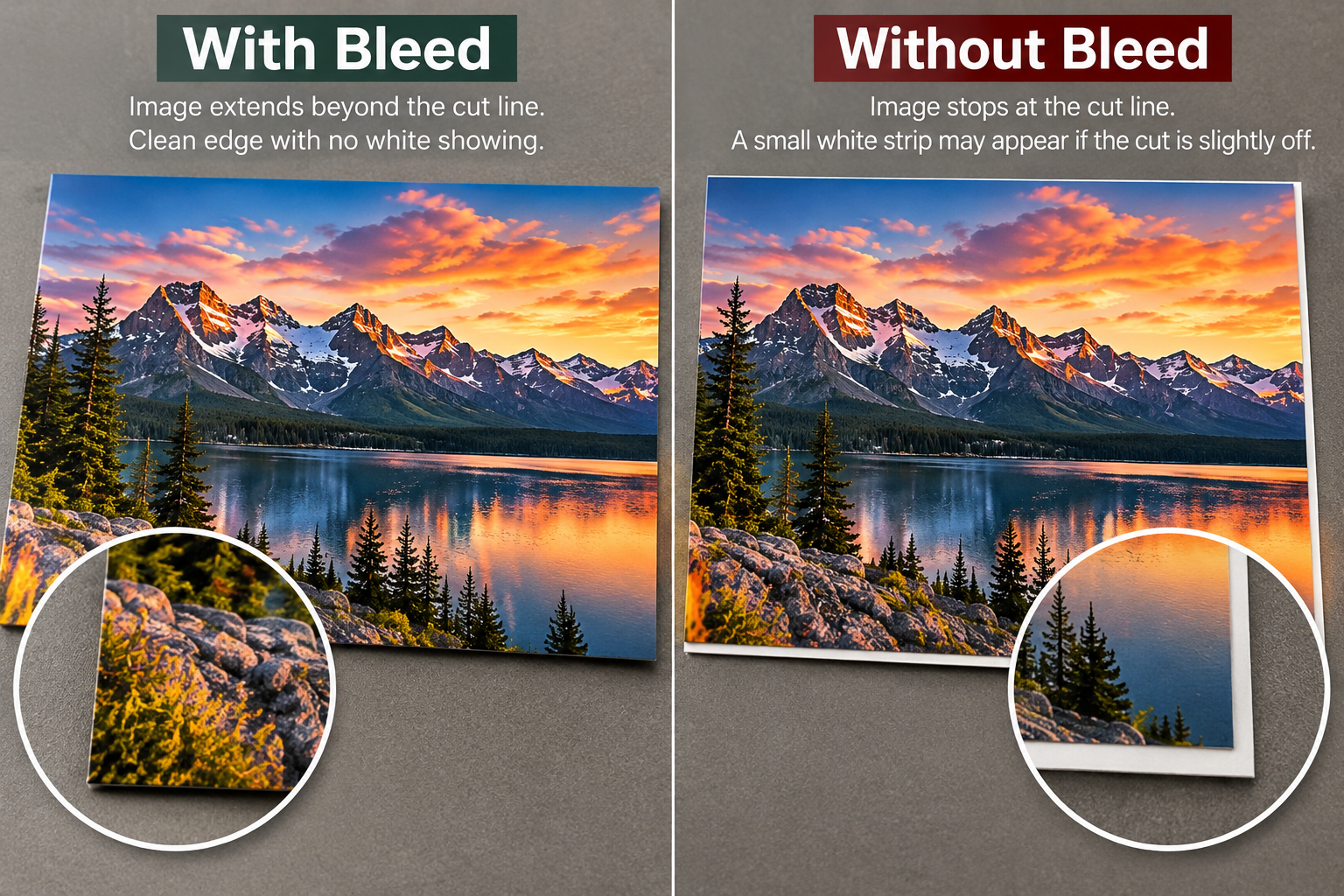
Bleed prevents this. Instead of stopping your background at the cutting line, you extend it a little farther beyond that line.
That extra artwork is called bleed. It gets trimmed away during production, leaving your background reaching cleanly to the edge.
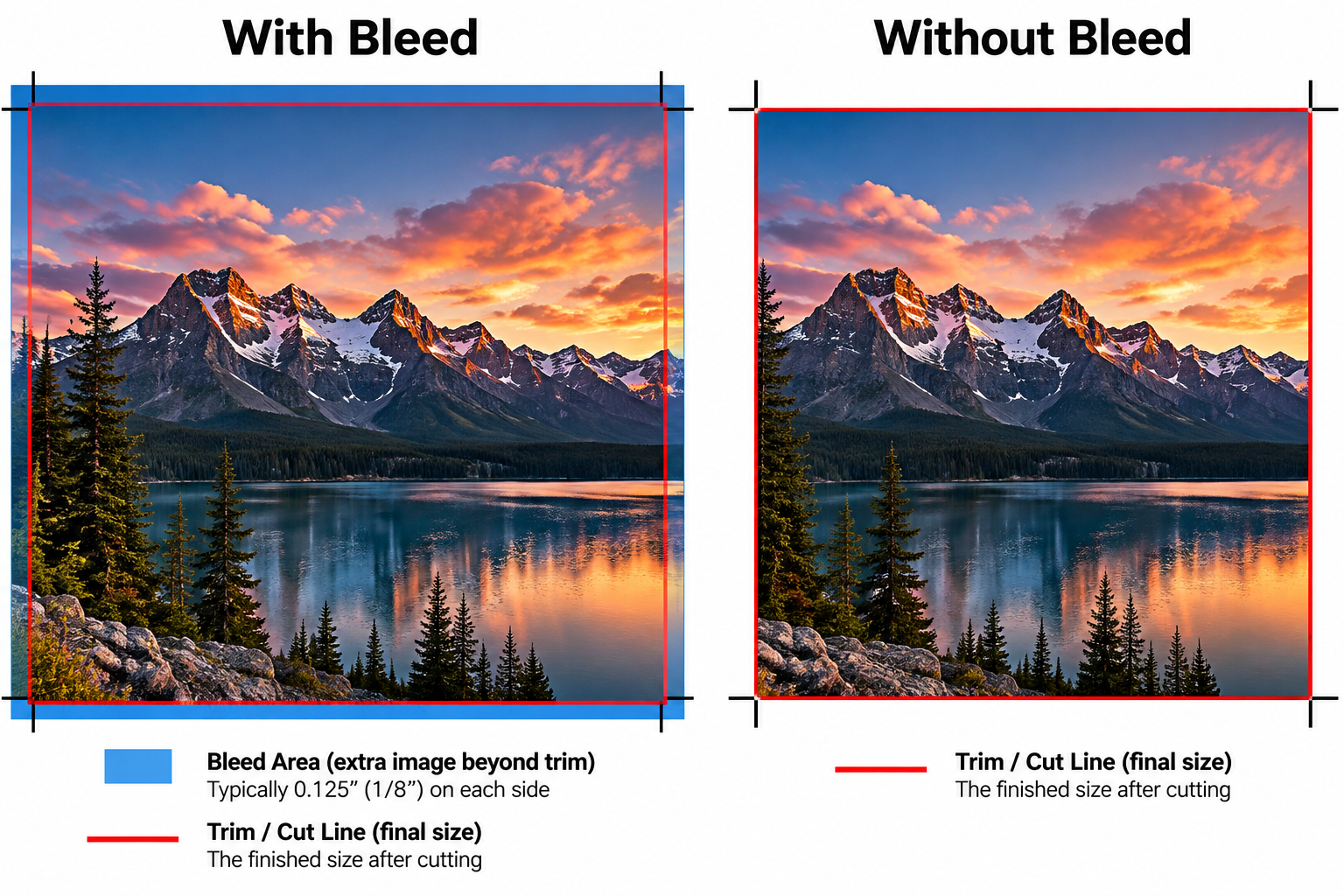
How Much Bleed Do I Need?
The required bleed depends on the product and its printing template.
Follow the bleed guides shown in the Proof Viewer. For example, if your template requires 0.125 inches of bleed, your background should extend an additional one-eighth of an inch beyond the cutting edge.
What Should Extend Into the Bleed?
Any background color, photograph, pattern, or design element that should reach the edge of the finished product needs to extend into the bleed area.
Do not extend important text or logos into the bleed area. That extra area is intended to be trimmed away.
What Is the Safe Area?
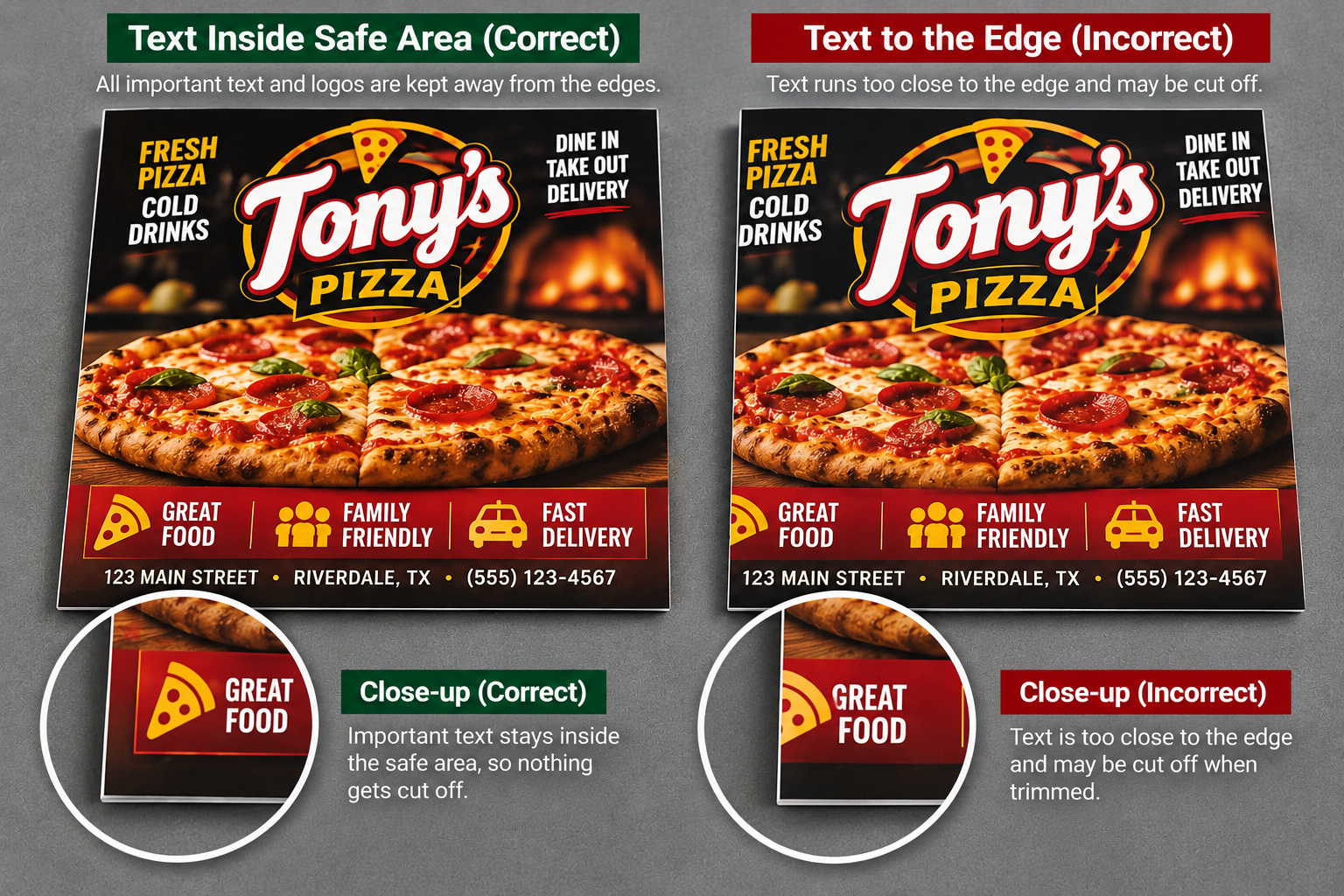
The safe area is the space where important parts of your design should stay to avoid being cut off.
Think of it as keeping your text away from the edge of a sheet of paper. Even if the cut moves slightly, everything important remains visible.
Keep names, phone numbers, logos, and other important information inside the safe area guides.
What If I Receive a Bleed Warning?
A bleed warning may mean your background does not extend far enough beyond the cutting edge.
If your design should print all the way to the edge, adjust the artwork to cover the required bleed area.
If your design intentionally has a white border or does not print to the edge, the warning may not require a change.
Remember: Backgrounds extend outward into the bleed. Important text stays inward inside the safe area.
Artwork Size
The Artwork Size check helps determine whether your design is appropriately sized for the selected product.
Why Does Size Matter?
If your artwork is too small, it may not cover the intended printing area. If it is too large or incorrectly positioned, parts of the design may extend beyond the template.
How to Adjust Your Artwork
- Open the Proof Viewer.
- Select Art Adjust.
- Use the resizing handles to adjust the artwork.
- Move the artwork into the desired position.
- Check the template guides to make sure everything fits correctly.
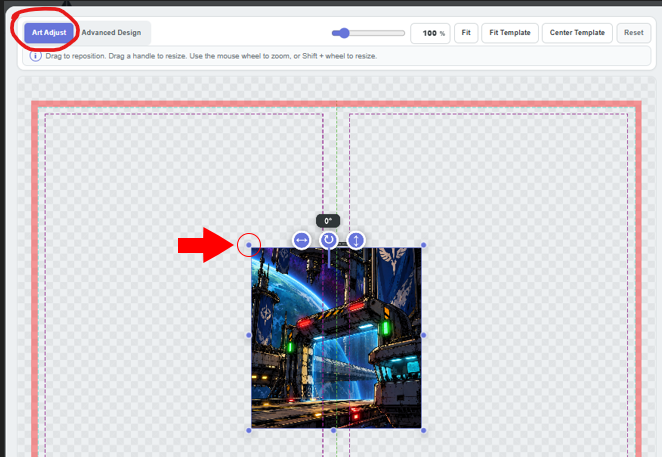
IMAGE: Artwork shown too small, correctly sized, and too large within a template
What About Image Quality?
Making an image larger does not add detail to it. A small image may become blurry when enlarged.
For more information, see the Artwork Quality section below.
Color Mode
Colors on a computer screen are created differently from colors used in printing. This means your printed colors may not look exactly the same as they do on your monitor.
What Is RGB?
RGB stands for Red, Green, and Blue. These colors are combined using light to create the images you see on computer screens, phones, and televisions.
What Is CMYK?
CMYK stands for Cyan, Magenta, Yellow, and Black. These are commonly used ink colors in printing.
Why Can Colors Look Different?
Some bright colors displayed on a screen cannot be reproduced exactly using standard printing inks.
For example, a very bright blue or green may appear less vibrant when printed.
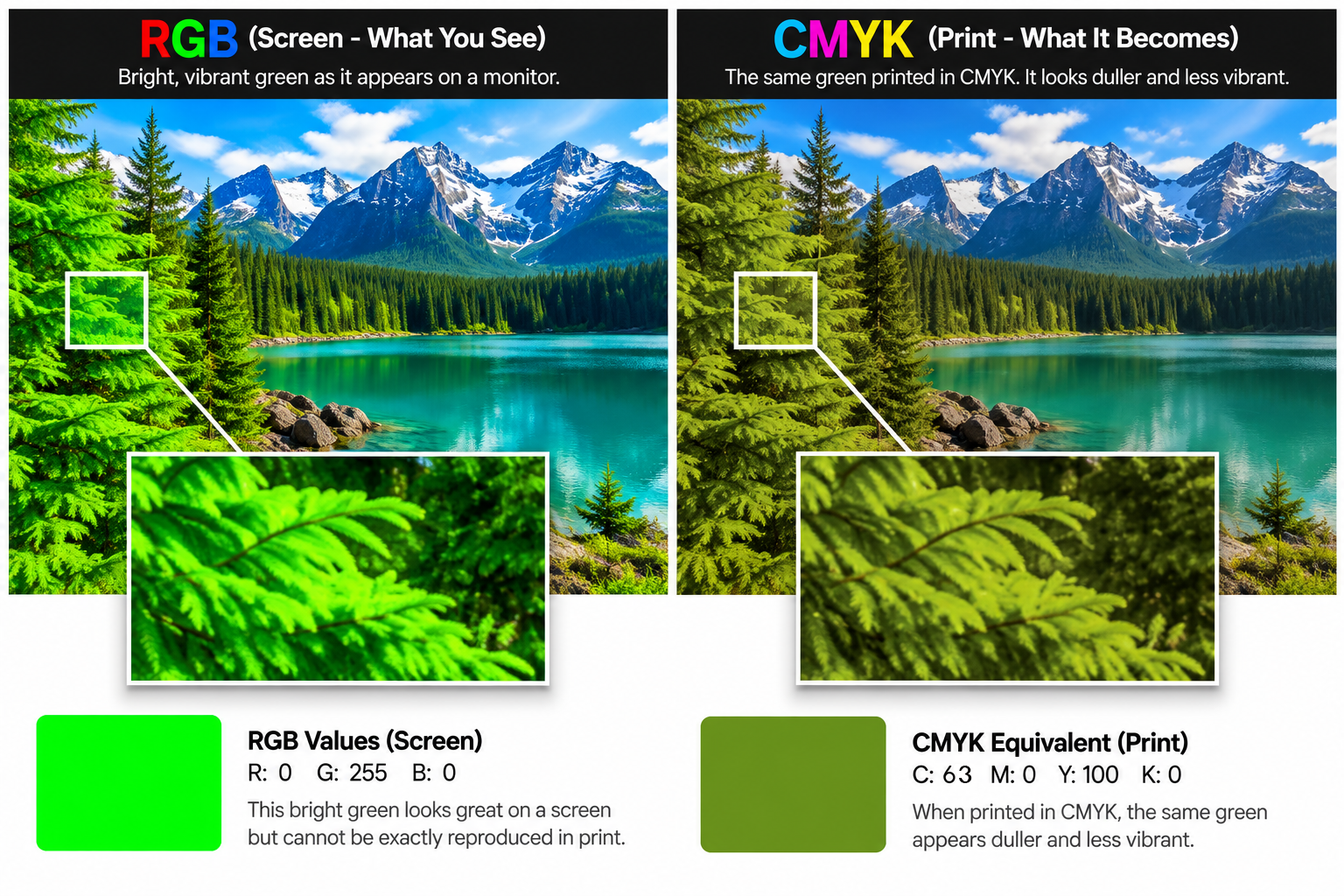
What If My Artwork Uses RGB?
An RGB warning is not necessarily a problem. It is a reminder that your artwork may need color conversion during production and that some colors may change slightly.
Tip: If exact colors are important for your business or brand, contact us before approving your artwork at (713) 271-7700.
Fonts
Fonts are the different styles of letters used in your artwork.
The Fonts check helps identify potential concerns with how text may appear when your artwork is prepared for printing.
Why Can Fonts Cause Problems?
Not every computer has the same fonts installed. If a file depends on a font that is unavailable, the text may display differently than intended.
This could change the appearance, spacing, or layout of your design.
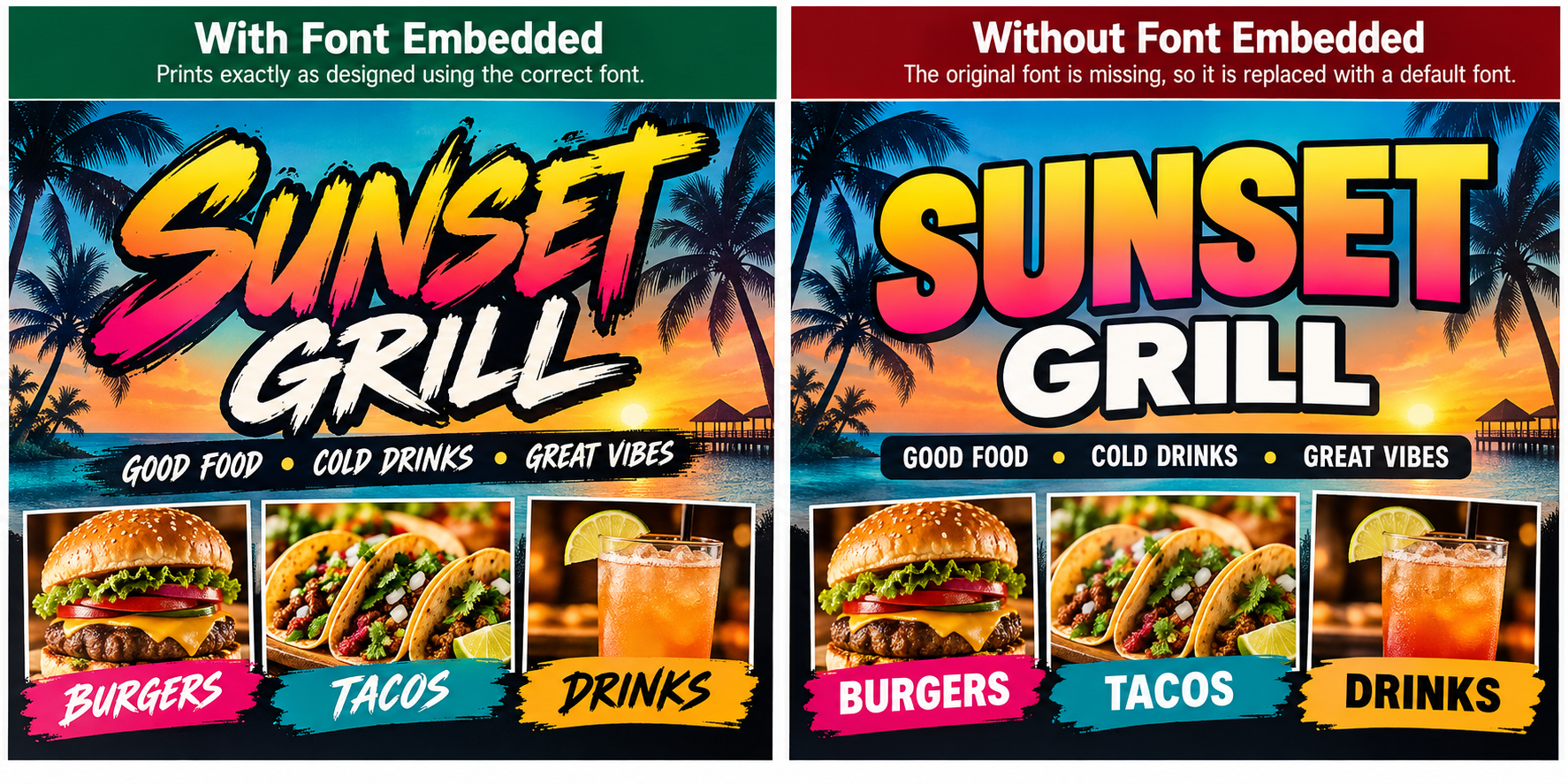
How Can I Avoid Font Problems?
When exporting artwork from design software, use the available options to embed fonts in your PDF or convert text to outlines when appropriate.
Converting text to outlines changes letters into shapes, helping preserve their appearance even when the original font is unavailable.
What Should I Check?
Carefully review all text in your Proof Viewer. Check spelling, font appearance, spacing, and whether any text has moved or disappeared.
Important: Automated font checks cannot determine whether words are spelled correctly. Proofread your artwork before approval.
Spot Colors
Spot colors are special colors that are defined separately from standard full-color printing.
They are often used when a design requires a specific ink color, such as a company brand color.
How Are Spot Colors Different?
Standard full-color printing creates colors by combining inks. A spot color identifies a particular color that may be printed using its own specially prepared ink, depending on the printing process.
What Does a Spot Color Check Mean?
The Proof Viewer may identify whether spot color information is present in your artwork.
Depending on the product and printing method, spot colors may be handled differently during production.
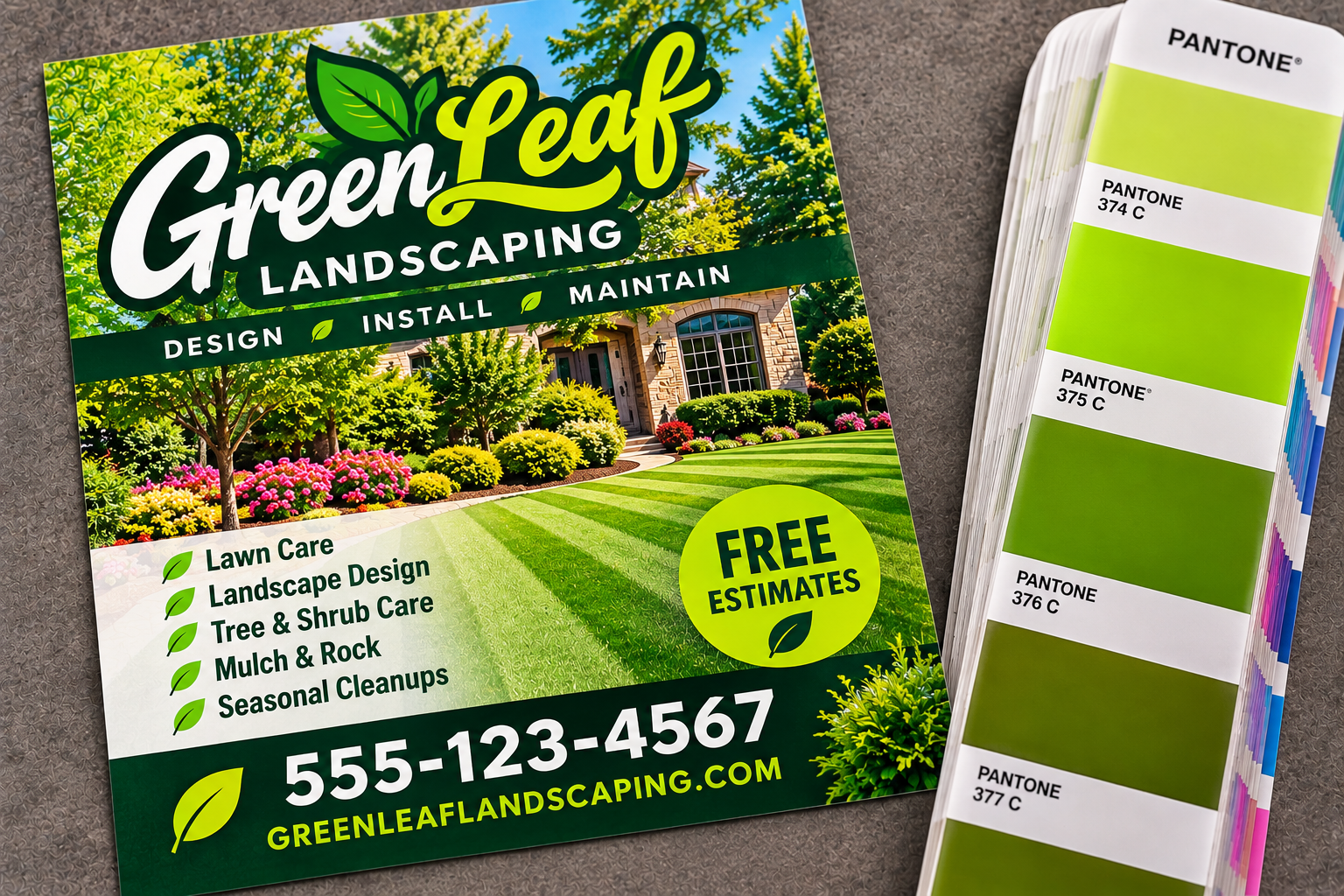
Do I Need to Change Anything?
For most everyday artwork, you may not need to do anything.
If your design requires a precise brand color, special ink, or a particular color-matching standard, contact us before approving your artwork at (713) 271-7700.
Artwork Quality
The Artwork Quality check helps identify potential image-quality concerns that could affect your finished product.
What Is Resolution?
Digital images are made from tiny squares called pixels.
When an image contains enough pixels for its printed size, it can appear sharp and detailed. When an image has too few pixels, it may look blurry or blocky when printed.
This is commonly called low resolution.
Why Does Enlarging an Image Matter?
Imagine taking a small photograph and stretching it to fill a large poster.
The image becomes bigger, but the original amount of detail stays the same. This can make the photograph appear blurry or pixelated.
What Is DPI?
DPI stands for dots per inch. In everyday artwork preparation, you may also see PPI, meaning pixels per inch.
These measurements help describe the level of detail available at the intended printing size.
Many print projects use approximately 300 PPI as a common target, but the appropriate resolution depends on the product, printing method, and viewing distance.
How Can I Improve Image Quality?
- Use the original high-resolution image whenever possible.
- Avoid enlarging small images more than necessary.
- Avoid screenshots when the original artwork is available.
- Review the artwork at a larger zoom level to look for blurriness or visible pixels.
Important: Simply saving a low-resolution image as a PDF or changing its DPI setting does not automatically restore missing detail.
Resolving Proof Warnings
If the Proof Viewer displays a warning, do not worry. Many warnings simply mean that something needs a closer look before printing.
Step 1: Read the Warning
Click the warning in the Proof Checks panel to see what the system detected.
Step 2: Review Your Artwork
Look at the area of your design related to the warning. Check whether the issue is visible and whether it affects your intended design.
Step 3: Make Adjustments If Needed
Use Art Adjust or Advanced Design to correct positioning, sizing, or other editable elements.
Some concerns, such as missing image detail or font problems in the original file, may require uploading a corrected artwork file.
Step 4: Review the Result
After making changes, review the artwork again and check whether the warning still applies.
IMAGE: Example showing an artwork warning and the corrected design
Step 5: Decide Whether to Continue
Not every warning requires a change. Some designs intentionally use white borders, unusual positioning, or other choices that may trigger a warning.
Make sure you understand the warning and are satisfied with the appearance of your artwork before verifying it.
Still Unsure?
If you are uncertain whether your artwork is ready for printing, contact CME Printing for assistance before approving your proof at (713) 271-7700.